SharePoint REST API - Working with Large File Uploads
I'm a .NET/M365 developer, trainer, author, MVP & MCT Alumni
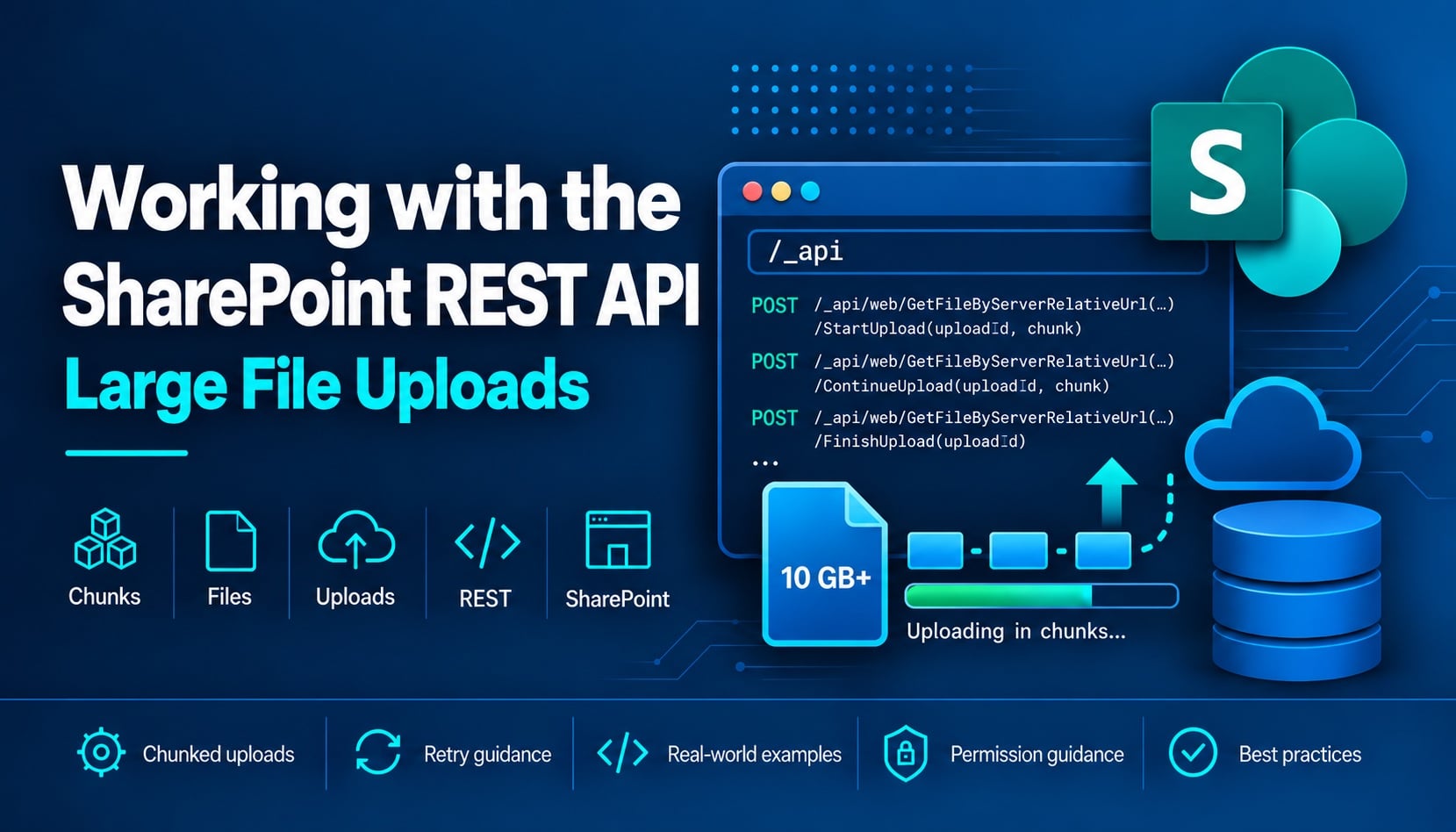
SharePoint Online supports files up to 250 GB, but the simple Files/add pattern has a 2 GB ceiling. For larger files — and for smaller uploads where resumability matters — the SharePoint REST API provides a session-based chunked upload flow built on the SharePoint Background Intelligent Transfer Service (BITS).
This post explains how that flow works, what each step returns, how to handle failures and retries, and where StartUploadFile differs from the more common StartUpload. It also includes a brief comparison with the Microsoft Graph upload-session API for developers deciding which surface to use.
Before You Start: Headers
Raw HTTP calls in this post assume the following OData v4 headers. Later examples omit common headers for brevity and show only headers relevant to that request. Binary request bodies use application/octet-stream; there is no JSON body in a chunked upload request.
Accept: application/json;odata.metadata=none
OData-Version: 4.0
Content-Type: application/octet-stream
Authorization: Bearer <token>
For a full explanation of OData versions and header options, see Understanding SharePoint REST JSON Formats.
Path handling note: The raw examples use the traditional
...ByServerRelativeUrlforms for readability. For names containing%or#, use the ResourcePath equivalents demonstrated in the JavaScript example. Apostrophes in OData string literals must be escaped as''.
Authentication note: The raw HTTP examples use a SharePoint Bearer token. With delegated authentication, the token represents a signed-in user and the operation must be permitted by both the delegated scope and that user's SharePoint permissions. With application (app-only) authentication, the token represents the Entra application and SharePoint evaluates its application permissions. For Entra app-only access to SharePoint REST, Microsoft documents certificate-based authentication; client-secret app-only tokens are not accepted by SharePoint REST. In SPFx, use
SPHttpClientinstead.
Why Chunked Upload?
The single-request Files/add pattern supports files up to 2 GB, although Microsoft recommends chunked upload for files above about 10 MB in SharePoint Online. Microsoft describes the recommendation as 10 MB; the JavaScript sample below uses 10 MiB (10,485,760 bytes).
POST /_api/web/GetFolderByServerRelativeUrl('/sites/marketing/Documents')/Files/add(url='report.docx',overwrite=true)
Content-Type: application/octet-stream

<raw file bytes>
Chunked upload is therefore the preferred approach for larger files and for uploads where resumability matters.
Chunked upload splits the file into sequential pieces and sends them in separate HTTP requests, each identified by the same upload session GUID. The server reassembles the pieces into the committed file after the final chunk is received.
The Chunked Upload Sequence
Step 1 — Create a stub file
The chunked upload methods (StartUpload, StartUploadFile) are instance methods on an existing SP.File. The file must already exist before you can start a session. Create an empty stub at the destination path using Files/add with an empty body:
POST /_api/web/GetFolderByServerRelativeUrl('/sites/marketing/Documents')/Files/add(url='presentation.pptx',overwrite=true)
Content-Type: application/octet-stream
Response: 200 OK with the SP.File entity. Length is 0 — the file is empty.
Versioning: Pass
overwrite=trueto replace an existing file. If versioning is enabled on the library, replacing an existing file creates a new version according to the library's versioning settings — in testing with major versioning enabled, the stub was version 2.0 when replacing a version 1.0. The chunked upload then fills in that version's content.
Important: This is not an atomic replacement. The empty stub exists as soon as stub creation completes. If the upload is abandoned or cancelled, the empty stub remains rather than SharePoint restoring the previous version.
Step 2 — Start the upload session
Generate a GUID to identify the upload session. You will use the same GUID in every subsequent step.
Call StartUpload on the stub file with the first chunk as the binary request body:
POST /_api/web/GetFileByServerRelativeUrl('/sites/marketing/Documents/presentation.pptx')/StartUpload(uploadId=guid'<uploadSessionGuid>')
Content-Type: application/octet-stream

<first chunk bytes>
Response: 200 OK with a JSON body containing the number of bytes the server received:
{
  "value": 1048576
}
This offset value is the fileOffset you must pass to the next step. It tells the server where the next chunk begins.
Chunk size: Microsoft does not document a hard minimum for the SharePoint BITS upload methods. Very small chunks are inefficient; Microsoft recommends a chunk size of 10 MB or larger.
Step 3 — Send middle chunks (optional)
For files that require more than two chunks, send each middle chunk using ContinueUpload. Pass the fileOffset value returned by the previous step:
POST /_api/web/GetFileByServerRelativeUrl('/sites/marketing/Documents/presentation.pptx')/ContinueUpload(uploadId=guid'<uploadSessionGuid>',fileOffset=<bytesReceivedSoFar>)
Content-Type: application/octet-stream

<next chunk bytes>
Response: 200 OK with the updated cumulative byte count:
{
  "value": 2097152
}
Repeat for each additional middle chunk, always using the offset returned by the previous call.
Step 4 — Finish the upload
Send the final chunk using FinishUpload. Pass the cumulative fileOffset returned by the last StartUpload or ContinueUpload call:
POST /_api/web/GetFileByServerRelativeUrl('/sites/marketing/Documents/presentation.pptx')/FinishUpload(uploadId=guid'<uploadSessionGuid>',fileOffset=<bytesReceivedSoFar>)
Content-Type: application/octet-stream

<final chunk bytes>
Response: 200 OK with the committed SP.File entity:
{
  "CheckInComment": "",
  "CheckOutType": 2,
  "ETag": "\"{C4F77D7D-FAB0-44F8-BE4B-034CE441CAD4},2\"",
  "Exists": true,
  "Length": 5784140,
  "MajorVersion": 1,
  "MinorVersion": 0,
  "Name": "presentation.pptx",
  "ServerRelativeUrl": "/sites/marketing/Documents/presentation.pptx",
  "TimeCreated": "2026-09-11T22:00:00Z",
  "TimeLastModified": "2026-09-11T22:00:05Z",
  "UIVersionLabel": "1.0",
  "UniqueId": "c4f77d7d-fab0-44f8-be4b-034ce441cad4"
}
File size after upload: For Office OOXML documents (PPTX, DOCX, XLSX), SharePoint can perform document property demotion during upload to synchronize embedded document properties with the destination library's content type and column metadata. In live testing with a PPTX whose embedded source-library schema differed from the destination library, SharePoint rewrote the
customXml/entries anddocProps/custom.xml, resulting in a committedLengththat differed from the original local file size. In corresponding tests with plain binary files, the uploaded size was preserved exactly. Use theLengthreturned in theFinishUploadresponse as the authoritative committed size.
Tracking Offsets Correctly
The most important thing to get right is the fileOffset value passed to each step.
The rule: always use the offset value returned by the previous step, not the offset you calculated locally. The server is the authoritative source for how many bytes it successfully stored.
If you pass an incorrect fileOffset to FinishUpload or ContinueUpload, the behavior depends on the direction of the error:
- Too low (
fileOffset< bytes actually received): SharePoint uses an overlap model. It retains the full session buffer and discards the first(serverOffset − fileOffset)bytes from the start of the incoming chunk before appending the rest. The response is200 OK— the file is silently assembled incorrectly with no error returned. - Too high (
fileOffset> bytes actually received): SharePoint returns500 Internal Server Errorwith error codeCannotAddDataNonContiguousData. The session remains active.
Example of silent corruption (validated): After
StartUploadreceived 1,048,576 bytes and returned{"value": 1048576}, callingFinishUploadwithfileOffset=999999(too low by 48,577 bytes) returned200 OK. SharePoint retained all 1,048,576 bytes already in the session buffer, discarded the first 48,577 bytes of the final chunk as overlapping data, and appended the remainder — assembling a corrupt file with no error. PassingfileOffset=1100000(too high) returned500 Internal Server ErrorwithCannotAddDataNonContiguousData.
End-to-End Example (JavaScript)
The following happy-path example uploads a File object in 10 MiB chunks using the SharePoint REST API from a browser context (such as an SPFx web part). It covers the normal upload sequence; see the next section for retry and cancellation handling.
const CHUNK_SIZE = 10 * 1024 * 1024; // 10 MiB

// Prepares a value for use in a SharePoint ResourcePath decodedUrl OData parameter.
// Value must be a decoded SharePoint path/name, not an already URI-encoded path.
// % and # require HTTP encoding; ' requires OData string literal doubling.
// % must be encoded first to avoid double-encoding other replacements.
function encodeDecodedUrl(value) {
  return value.replace(/%/g, '%25').replace(/#/g, '%23').replace(/'/g, "''");
}

async function uploadLargeFile(spHttpClient, siteUrl, folderUrl, file) {
  const fileName = file.name;
  const fileUrl = `\({folderUrl}/\){fileName}`;
  const totalSize = file.size;

  // Files that fit in a single chunk use the ordinary upload path
  if (totalSize <= CHUNK_SIZE) {
    const buffer = await file.arrayBuffer();
    const response = await spHttpClient.post(
      `\({siteUrl}/_api/web/GetFolderByServerRelativePath(decodedUrl='\){encodeDecodedUrl(folderUrl)}')/Files/AddUsingPath(decodedurl='${encodeDecodedUrl(fileName)}',overwrite=true)`,
      SPHttpClient.configurations.v1,
      {
        headers: { "Content-Type": "application/octet-stream" },
        body: buffer,
      }
    );
    if (!response.ok) {
      const error = await response.json();
      throw new Error(`Upload failed: ${error.error.message}`);
    }
    return await response.json();
  }

  const uploadId = crypto.randomUUID();

  // Step 1: Create stub
  const stubResponse = await spHttpClient.post(
    `\({siteUrl}/_api/web/GetFolderByServerRelativePath(decodedUrl='\){encodeDecodedUrl(folderUrl)}')/Files/AddStubUsingPath(DecodedUrl='${encodeDecodedUrl(fileName)}',Overwrite=true)`,
    SPHttpClient.configurations.v1,
    {
      headers: { "Content-Type": "application/octet-stream" },
      body: new ArrayBuffer(0),
    }
  );
  if (!stubResponse.ok) {
    const error = await stubResponse.json();
    throw new Error(`Failed to create upload stub: ${error.error.message}`);
  }

  let offset = 0;
  let chunkIndex = 0;

  while (offset < totalSize) {
    const chunkEnd = Math.min(offset + CHUNK_SIZE, totalSize);
    const chunk = file.slice(offset, chunkEnd);
    const isLast = chunkEnd === totalSize;
    const isFirst = chunkIndex === 0;

    const buffer = await chunk.arrayBuffer();

    let endpoint;
    if (isFirst) {
      endpoint = `\({siteUrl}/_api/web/GetFileByServerRelativePath(decodedUrl='\){encodeDecodedUrl(fileUrl)}')/StartUpload(uploadId=guid'${uploadId}')`;
    } else if (isLast) {
      endpoint = `\({siteUrl}/_api/web/GetFileByServerRelativePath(decodedUrl='\){encodeDecodedUrl(fileUrl)}')/FinishUpload(uploadId=guid'\({uploadId}',fileOffset=\){offset})`;
    } else {
      endpoint = `\({siteUrl}/_api/web/GetFileByServerRelativePath(decodedUrl='\){encodeDecodedUrl(fileUrl)}')/ContinueUpload(uploadId=guid'\({uploadId}',fileOffset=\){offset})`;
    }

    const response = await spHttpClient.post(
      endpoint,
      SPHttpClient.configurations.v1,
      {
        headers: { "Content-Type": "application/octet-stream" },
        body: buffer,
      }
    );

    if (!response.ok) {
      const error = await response.json();
      throw new Error(`Upload failed at offset \({offset}: \){error.error.message}`);
    }

    const result = await response.json();

    if (!isLast) {
      // StartUpload and ContinueUpload return { value: <bytesReceived> }
      offset = result.value;
    } else {
      // FinishUpload returns the committed SP.File entity
      console.log(`Upload complete: \({result.Name}, \){result.Length} bytes`);
      return result;
    }

    chunkIndex++;
  }
}
SPFx note:
SPHttpClientautomatically includes the correct OData headers and user authentication context. TheContent-Type: application/octet-streamoverride is still required for binary uploads. You do not need to obtain or manage the request digest yourself —SPHttpClientautomatically obtains a valid digest and adds it to non-GET requests.
Retrying After Failure
If a StartUpload or ContinueUpload request fails because of a network interruption, timeout, or transient 5xx server error, you can safely retry without restarting the overall upload. Do not automatically retry known semantic errors such as CannotAddDataNonContiguousData or session-state exceptions; handle those according to the error condition.
StartUpload is documented as idempotent when retried with the same uploadId and identical chunk data. For ContinueUpload, live testing confirmed that replaying an identical request — same uploadId, fileOffset, and bytes — is also safe. If the original request succeeded, the replay falls entirely within the existing session buffer, so the overlap behavior discards the duplicate bytes.
Retry strategy:
- Re-send the failed chunk with the same
uploadIdand, forContinueUpload, the same originalfileOffset. - If the retry also fails, wait briefly (exponential backoff) and retry again.
- Use the
{"value": N}returned after a successful retry as thefileOffsetfor the next chunk — do not assume the previously-calculated value.
FinishUpload failure requires a different approach. If a FinishUpload request times out or produces a network error, the outcome is ambiguous: the server may have successfully committed the file and closed the session before the client received the error. Retrying FinishUpload against a closed session returns SPBITSSessionNotFoundException. Before retrying, check whether the destination file exists and has a non-zero Length. If it does, the upload succeeded despite the client-side error. If not, the session is likely still active and a retry is appropriate.
If you cannot recover from an error and want to clean up the server-side session, call CancelUpload:
POST /_api/web/GetFileByServerRelativeUrl('/sites/marketing/Documents/presentation.pptx')/CancelUpload(uploadId=guid'<uploadSessionGuid>')
Response: 204 No Content. The BITS session is cancelled. The stub file remains on the server as an empty (0-byte) file. This is documented Microsoft behavior: CancelUpload only deletes the file if it did not already exist in the library before the session started. Because the chunked upload pattern always begins by creating a stub, the stub always survives cancellation. To remove it, issue a separate DELETE request.
After CancelUpload, any attempt to call ContinueUpload or FinishUpload with the same uploadId returns:
{
  "error": {
    "code": "-2146232832, Microsoft.SharePoint.Utilities.SPBITSSessionNotFoundException",
    "message": "Error in the application."
  }
}
The same error occurs if you use an uploadId that was never registered (wrong GUID, or a session that already completed or was cancelled).
Session lifetime: No session-expiration timestamp is surfaced in the API response, but Microsoft does publish lifecycle guidance: send each chunk within 30 minutes of the previous one; after an interruption the file lock normally remains for around 15 minutes; unfinished files are typically removed after 6–24 hours, though Microsoft notes these periods are subject to change. Cancel sessions explicitly if you abandon an upload rather than relying on automatic cleanup.
Conflict: Active Session on a File
Calling StartUpload (or StartUploadFile) on a file that already has an active BITS session returns:
{
  "error": {
    "code": "-2130575142, Microsoft.SharePoint.Utilities.SPBITSSessionInProgressException",
    "message": "A file with the same name is currently being saved to this site. Change the filename and try to save again."
  }
}
If this happens unexpectedly, it usually means a previous upload attempt is still in progress or was not properly cancelled. Options:
- Wait for the existing session to complete or expire.
- Call
CancelUploadwith the original session'suploadId(if you have it) to release the lock. - Use a different destination filename for the new upload.
Less Common Methods
StartUploadFile vs StartUpload
SharePoint exposes two methods for starting a chunked upload session:
StartUpload |
StartUploadFile |
|
|---|---|---|
| Returns | Edm.Int64 — bytes received |
SP.File — current file entity (Length=0) |
| Offset tracking | Server provides it in the response | Caller must track from chunk size |
| Session continues with | ContinueUpload / FinishUpload |
ContinueUpload / FinishUpload |
| Requires stub first | Yes | Yes |
StartUploadFile starts a session the same way as StartUpload — it requires the stub file to already exist and takes the same parameters — but it returns the SP.File entity rather than the byte count. Because the returned object does not include the committed offset, you must track it yourself using the size of the chunk you sent.
Service metadata note: The SharePoint REST service metadata includes an
entitySetannotation onStartUploadFile. TheentitySetannotation should not be interpreted as indicating that the operation is bound to the Files collection; the method metadata and live behavior show thatStartUploadFileis invoked on anSP.Fileinstance, exactly likeStartUpload.
POST /_api/web/GetFileByServerRelativeUrl('/sites/marketing/Documents/presentation.pptx')/StartUploadFile(uploadId=guid'<uploadSessionGuid>')
Content-Type: application/octet-stream

<first chunk bytes>
Response: 200 OK with the SP.File entity (Length is 0 — the chunk has been received into the session buffer but the file content has not been committed yet):
{
  "Exists": true,
  "Length": 0,
  "Name": "presentation.pptx",
  "UniqueId": "09920b48-c2aa-4787-a94e-76fdec83524f"
}
After StartUploadFile, continue with ContinueUpload and FinishUpload using fileOffset = chunk1.Length (the number of bytes you sent in the StartUploadFile call).
Which one to use: StartUpload is normally preferable. Its response gives you the authoritative server offset directly, which is substantially more useful for a robust upload implementation — particularly for retry logic. StartUploadFile returns the file entity rather than the server offset, so offset tracking falls entirely on the caller. Both start the same session and produce the same committed file.
FinishUploadWithChecksum
The SharePoint REST service metadata includes a FinishUploadWithChecksum method on SP.File. Its signature takes the same uploadId and fileOffset parameters as FinishUpload, plus a checksum string parameter intended to validate the uploaded data.
In live SharePoint Online testing, FinishUploadWithChecksum did not function with any tested checksum or session combination. Passing an empty checksum value returns 400 Bad Request (ArgumentException), confirming the method is recognized. Passing any non-empty checksum value — regardless of algorithm (SHA-256 or SHA-1), scope (full file or chunk), or session type (StartUpload or StartUploadFile) — returned 500 Internal Server Error with SPBITSSessionNotFoundException across all six tested combinations. All non-empty checksum values were submitted as Base64-encoded raw hash digests.
Use FinishUpload to commit the final chunk. Do not use FinishUploadWithChecksum.
SharePoint REST vs Microsoft Graph Upload Sessions
SharePoint REST and Microsoft Graph both support resumable large-file uploads, but they use different models.
The SharePoint REST approach — StartUpload / ContinueUpload / FinishUpload — is what this post covers. It operates against the classic SharePoint REST surface and is familiar to SPFx developers.
Microsoft Graph provides a different, session-based model built around createUploadSession. Graph creates a preauthenticated upload URL, you PUT byte ranges directly to that URL (no Bearer token required for the actual data transfer), and Graph tracks which ranges have been received via nextExpectedRanges. Sessions can be resumed after interruption, and Microsoft currently recommends resumable transfers for files larger than 10 MiB. Fragment sizes should be multiples of 320 KiB; 5–10 MiB is the recommended range.
If you are already building against Microsoft Graph, its upload-session API may be the more natural choice. If you are working within the SharePoint REST surface — particularly in SPFx — the StartUpload / ContinueUpload / FinishUpload sequence covered here is usually the more natural fit.
Power Automate's Send an HTTP Request to SharePoint action can invoke SharePoint REST APIs, so these endpoints are callable from a flow. However, this article's chunked-upload sequence has not been validated end-to-end through Power Automate. A flow would still need to obtain and transmit each chunk as the exact binary bytes expected by SharePoint, which makes this considerably less straightforward than implementing the same sequence in code. For genuinely large-file automation scenarios, a code-based component — using either SharePoint REST or Microsoft Graph upload sessions — is usually easier to control and validate.
Required Permissions
The table below lists the tenant-wide delegated and application permission scopes validated for these operations. Delegated scopes apply when calling with a Bearer token on behalf of a signed-in user; the minimum user access column shows what access the signed-in user needs when using classic SharePoint permissions and modern SharePoint group permissions. Application permissions apply when calling without a signed-in user context (app-only). The application permissions in this table are permissions on the Office 365 SharePoint Online API, not the same-named Microsoft Graph permissions.
An SPFx solution using SPHttpClient does not require you to grant these delegated or application scopes to the solution; it calls SharePoint as the current user, whose SharePoint permissions govern the operation. Delegated permission scope requirements were validated against SharePoint Online using a user with site Member access. The classic permission requirements in the table come from Microsoft's documentation.
| Operation | Delegated scope | Minimum user access | Minimum tenant-wide application permission |
|---|---|---|---|
All chunked upload operations (stub creation, StartUpload, ContinueUpload, FinishUpload, StartUploadFile, CancelUpload) |
AllSites.Write |
Classic: Contribute; Group: Member | Sites.ReadWrite.All |
Note: The permissions above are tenant-wide grants. For least-privilege access scoped to specific site collections, the SharePoint Sites.Selected permission can be used instead — for both delegated and application access. With delegated
Sites.Selected, authorization is the intersection of the application's assigned site role and the signed-in user's permissions. Sites.Selected consent alone does not grant access to any site; an explicit site role must also be assigned. For the upload operations covered here, assignwrite(or a broader role such asmanageorfullcontrolif the application genuinely requires those additional capabilities) — areadassignment is not sufficient. Microsoft introduced delegated Sites.Selected support for SharePoint REST in February 2024.
Quick Reference
| Step | Method | Endpoint | Body | Returns |
|---|---|---|---|---|
| Create stub | POST |
.../Files/add(url='file.ext',overwrite=true) |
Empty | SP.File (Length=0) |
| Start session | POST |
.../StartUpload(uploadId=guid'<id>') |
Chunk 1 bytes | {"value": <bytesReceived>} |
| Continue (middle chunks) | POST |
.../ContinueUpload(uploadId=guid'<id>',fileOffset=<N>) |
Chunk N bytes | {"value": <bytesReceived>} |
| Finish | POST |
.../FinishUpload(uploadId=guid'<id>',fileOffset=<N>) |
Last chunk bytes | SP.File (committed) |
| Start (alt) | POST |
.../StartUploadFile(uploadId=guid'<id>') |
Chunk 1 bytes | SP.File (Length=0) |
| Cancel | POST |
.../CancelUpload(uploadId=guid'<id>') |
— | 204 No Content |
The table uses the traditional ...ByServerRelativeUrl / Files/add forms for brevity. For ResourcePath-safe handling, use the corresponding GetFolderByServerRelativePath, GetFileByServerRelativePath, AddUsingPath, or AddStubUsingPath forms demonstrated in the JavaScript example.
| Offset / session behavior | Result | Notes |
|---|---|---|
fileOffset too low |
200 OK — silent corruption |
Overlapping prefix discarded; committed file will be corrupt |
fileOffset correct |
200 OK |
Normal operation |
fileOffset too high |
500 — CannotAddDataNonContiguousData |
Session remains active |
Wrong uploadId |
500 — SPBITSSessionNotFoundException |
Unknown uploadId, or session already completed/cancelled |
| Active session conflict | 500 — SPBITSSessionInProgressException |
Another session is already in progress for this file |
Wrapping Up
The StartUpload / ContinueUpload / FinishUpload sequence is the standard SharePoint REST pattern for moving files that are too large for a single request, or for any upload where you want the ability to resume after an interruption. The most important implementation rule is to always use the offset value returned by the server — not a locally calculated value — as the fileOffset for each subsequent call. If your solution is already built on Microsoft Graph, its upload-session API covers the same need with a different model; if you are working within the SharePoint REST surface, the sequence described here is the natural fit.
References
- SharePoint Online limits — Documents the 250 GB per-file service limit.
- Working with folders and files with REST — Microsoft REST file documentation; states that the maximum binary file created via REST is 2 GB; notes that ordinary URL examples do not support
%and#in file names, and that ResourcePath should be used for those characters. - Upload large files sample SharePoint Add-in — Microsoft's large-file upload guidance: the
StartUpload/ContinueUpload/FinishUploadsequence, recommended 10 MB chunk size, and session-lifetime guidance. - Supporting % and # in files and folders with the ResourcePath API — The
GetFolderByServerRelativePath,GetFileByServerRelativePath,AddUsingPath, andAddStubUsingPathAPI family. ResourcePath handles%and#in paths; apostrophe safety in OData string parameters requires separate escaping (doubling'to''). - Granting access via Entra ID App-Only — Certificate-based authentication requirement for Entra app-only access to SharePoint REST; client-secret tokens are blocked by SharePoint Online.
- Updates on controlling app-specific access on specific SharePoint sites (Sites.Selected) — The
Sites.Selectedapplication permission for least-privilege site-level access; covers legacy SharePoint REST/CSOM support. - SharePoint now supports delegated Sites.Selected authentication — February 2024 announcement extending
Sites.Selectedto delegated access scenarios. - driveItem: createUploadSession — Microsoft Graph v1.0 — Microsoft Graph's upload-session API; preauthenticated upload URL,
nextExpectedRangestracking, 5–10 MiB fragments as multiples of 320 KiB, and the requirement not to send theAuthorizationheader with the preauthenticated upload URL. - Working with the SharePoint Send HTTP Request flow action in Power Automate — Microsoft's guidance on constructing and executing SharePoint REST/OData requests from the Send an HTTP Request to SharePoint action in Power Automate.

